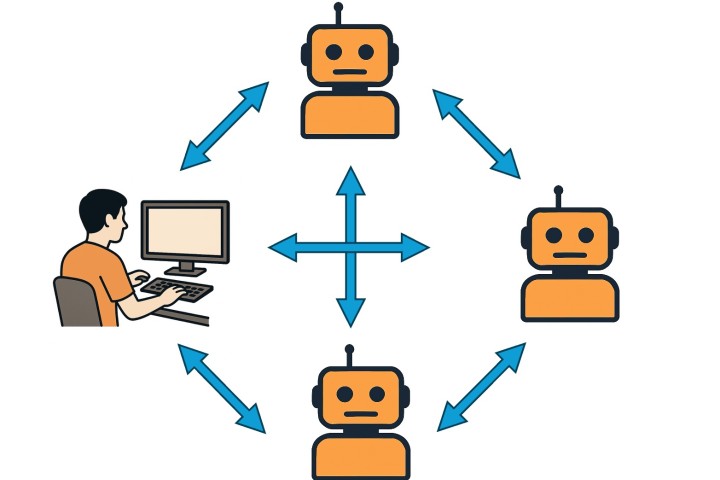
A practical walkthrough for parsing PDFs and chatting about their content
Parsing PDFs with Spring AI, Docling and MCP
Parsing PDFs with tables, images and mixed layouts is still surprisingly hard. At the same time, chatting with AI agents about your own documents is becoming a standard expectation.
In this blog, we'll build a small application that can parse real-world PDFs into structured sections and tables, and then let you ask questions about specific parts or the entire document. The solution uses Spring AI for the conversational flow and Docling, exposed as an MCP server, for PDF parsing.
Parsing PDFs with Docling
Docling is a Python project that simplifies document processing. It can parse multiple formats, including PDFs. With close to 50k stars on GitHub, it is a popular choice.
You can embed Docling as a library in your project, but you can also run it as a service. The service is particularly interesting because it can expose Docling as an MCP server.
You can run the server using uvx, a common approach for local MCP servers. Another option is to run it as a Docker container and connect to it through streamable HTTP.
To give you an idea of what is possible, let's start by parsing a basic PDF. If you check out the project, you can find the PDF in the documents folder.
First, we need to install Docling. The following commands create a Python virtual environment and install Docling. Be aware that it comes with quite a few dependencies.
python3 -m venv .venv
.venv/bin/pip install --upgrade pip
.venv/bin/pip install docling
source .venv/bin/activate

# Convert a PDF into a JSON representation
docling --to json --output "./data/" ./documents/about-jettro.pdf
The resulting JSON document is also available in the repository. Docling can also extract a Markdown file, but what I like about the JSON representation is that the original document structure remains intact.
You still know where text elements, tables and images occur in the document. This means, for example, that you can retrieve the text directly above an image and potentially use it to understand or explain that image.
If you inspect the JSON document, you can see the different elements found on the page. Below is a small example from the output.
{
  "self_ref": "#/texts/13",
  "parent": {
    "$ref": "#/body"
  },
  "children": [],
  "content_layer": "body",
  "label": "text",
  "prov": [
    {
      "page_no": 1,
      "bbox": {
        "l": 264.469,
        "t": 801.500975078124,
        "r": 316.768,
        "b": 792.924975078124,
        "coord_origin": "BOTTOMLEFT"
      },
      "charspan": [0, 11]
    }
  ],
  "orig": "Open in app",
  "text": "Open in app"
}
Notice that the extracted data includes exact coordinates for both the content and the extracted text.
You can use plugins to chunk larger pieces of text into smaller sections that are ready for vectorizing and semantic search. You can also use tools to extract knowledge from images.
If you prefer Java, there is also a Java API for interacting with Docling.
Running Docling as a Docker service
Below is the docker-compose.yml file used to start Docling as a Docker container.
The compose file maps the local documents folder to the /data path inside the container. This path is important because it provides Docling with the files that need to be transformed into Markdown or JSON.
The command also exposes the Docling MCP server using streamable HTTP.
version: '3.8'

services:
  docling:
    image: quay.io/docling-project/docling-serve
    container_name: docling-mcp-server
    ports:
      - "8000:8000"
    volumes:
      # Mount a local directory to /data in the container
      # Change ./documents to your preferred local path
      - ./documents:/data
    restart: unless-stopped
    command: |
      docling-mcp-server --transport streamable-http --port 8000 --host 0.0.0.0
    environment:
      # Add any environment variables the Docling server might need
      - LOG_LEVEL=INFO
Docling documentation
You can learn more about Docling on the official Docling documentation website.
Building the PDF chat application with Spring AI
If you are a regular reader of my blog, Spring AI probably does not need much introduction.
Although many AI applications and tools are built in Python, I still prefer Java when building production-grade enterprise applications. We do not necessarily need a separate AI application alongside our existing systems. Smart features can also be incorporated directly into existing Java applications.
Frameworks such as Spring AI and Embabel make it possible to add AI functionality to applications that work with live production data. Another interesting option is to combine popular Python applications, exposed as MCP tools, with Java-based AI agents.
Spring AI acts as the bridge between those MCP servers and our Java application.
Spring AI dependencies
The sample application is built using Maven. Spring AI supports Spring Boot and provides different starter dependencies, many of which use auto-configuration.
For this application, we need:
- An MCP client starter.
- A starter for the LLM, such as Ollama or OpenAI.
- Spring Boot's web starter for the backend.
<dependency>
  <groupId>org.springframework.ai</groupId>
  <artifactId>spring-ai-starter-mcp-client</artifactId>
</dependency>

<dependency>
  <groupId>org.springframework.ai</groupId>
  <artifactId>spring-ai-starter-model-openai</artifactId>
</dependency>

<dependency>
  <groupId>org.springframework.boot</groupId>
  <artifactId>spring-boot-starter-web</artifactId>
</dependency>
A typical interaction with an LLM through Spring AI looks like this:
@PostMapping("/ai")
public String ai(@RequestBody UserInput userInput, HttpSession session) {
    String userName = userInput.userName();

    ToolCallback[] toolCallbacks = this.toolCallbackProvider.getToolCallbacks();

    return chatClient.prompt()
            .system(SYSTEM_PROMPT)
            .user(userInput.input())
            .advisors(MessageChatMemoryAdvisor.builder(chatMemory)
                    .conversationId(userName).build())
            .toolCallbacks(toolCallbacks)
            .call()
            .content();
}
The toolCallbackProvider is created from McpSyncClient instances. These are injected by the Spring framework and initialized through auto-configuration.
The same applies to chatMemory, for which auto-configuration provides a default.
Configuring the OpenAI model
Another important part of the Spring configuration is the application.yaml file. It is loaded from the classpath and contains configuration for several components, including the connection to OpenAI.
Below, the API key is read from an environment variable and the model is configured as GPT-5.1.
spring:
  application:
    name: spring-ai-docling
  ai:
    openai:
      api-key: ${OPENAI_API_KEY}
      chat:
        options:
          model: gpt-5.1
Connecting Spring AI to Docling through MCP
At this point, Docling is running as an MCP server through Docker. One way to inspect the tools exposed by the server is to use the MCP Inspector.
The following command starts the inspector:
npx @modelcontextprotocol/inspector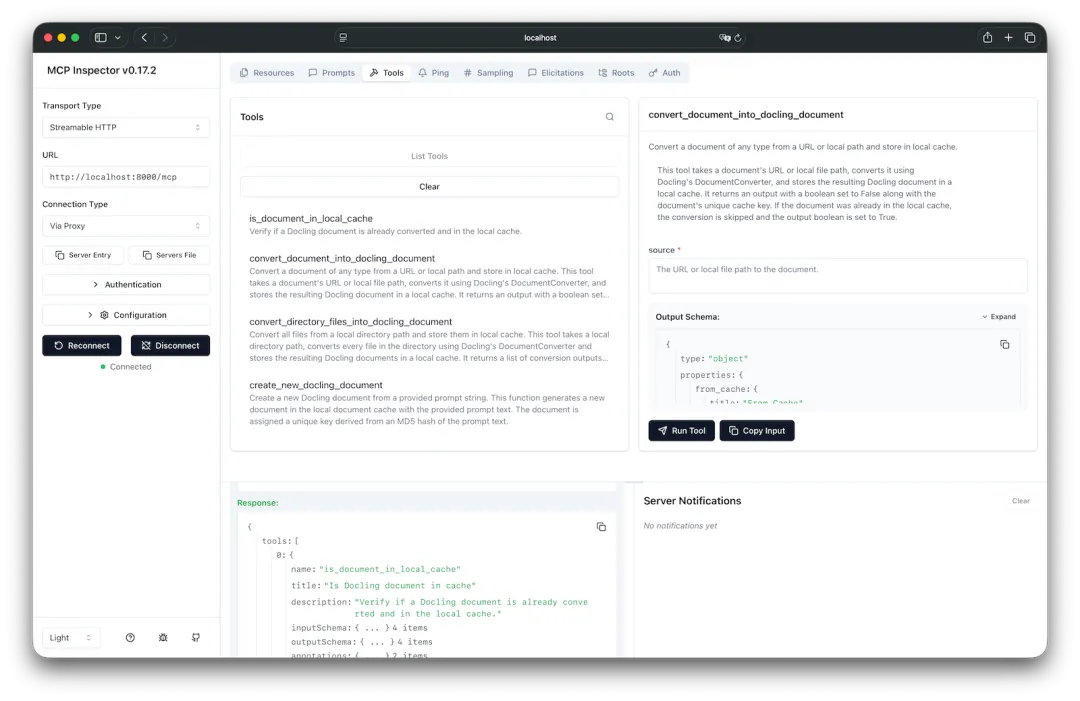
The MCP Inspector shows the tools exposed by Docling.
In theory, connecting Spring AI to the Docling MCP server only requires auto-configuration and a few properties. The relevant part of the application.yaml looks like this:
spring:
  ai:
    mcp:
      client:
        type: SYNC
        initialized: false
        streamable-http:
          connections:
            docling:
              url: http://localhost:8000
              endpoint: /mcp
Notice that initialization is set to false. At one point, there was a race condition, so we had to initialize the client manually.
An additional advantage is that we can print all available MCP tools when starting the application.
public AiController(ChatClient.Builder chatClientBuilder,
                    List<McpSyncClient> mcpSyncClients,
                    ChatMemory chatMemory) {
    this.chatClient = chatClientBuilder.build();
    this.chatMemory = chatMemory;

    // Initialize MCP clients
    mcpSyncClients.forEach(McpSyncClient::initialize);

    if (logger.isTraceEnabled()) {
        mcpSyncClients.forEach(client -> {
            client.listTools().tools().forEach(tool -> {
                logger.trace("MCP Client Tool Loaded: {} - {}", tool.name(), tool.description());
            });
        });
    }

    this.toolCallbackProvider = SyncMcpToolCallbackProvider.builder()
            .mcpClients(mcpSyncClients)
            .build();
}
Troubleshooting the Spring AI and Docling integration
With the core integration in place, the application can be started. In practice, however, I encountered a few issues that are worth discussing.
Configuring the request timeout
Some Docling tools take longer to complete. We therefore needed to increase the amount of time the client waits for a response.
Spring AI lets you customize the McpSyncClient using McpSyncClientCustomizer.
@Component
public class CustomMcpSyncClientCustomizer implements McpSyncClientCustomizer {
    @Override
    public void customize(String name, McpClient.SyncSpec spec) {
        spec.requestTimeout(Duration.ofMinutes(2));
    }
}
Solving the HTTP client version issue
The HTTP version issue was more difficult to diagnose.
After some investigation, I found that the MCP server only supports HTTP 1.1. I received a warning that the connection could not be upgraded.
After further debugging, I discovered that the auto-configuration streamableHttpHttpClientTransports replaces the default HTTP 1.1 connection with HTTP/2.
To solve this, we need to take two steps:
- Disable or exclude the auto-configuration for this specific class.
- Add the class ourselves with a small adjustment.
spring:
  application:
    name: spring-ai-docling
  autoconfigure:
    exclude:
      - org.springframework.ai.mcp.client.httpclient.autoconfigure.StreamableHttpHttpClientTransportAutoConfiguration
Next, copy the contents of that class into a new class and adjust the client configuration. Pay particular attention to the clientBuilder.
HttpClientStreamableHttpTransport.Builder transportBuilder =
    HttpClientStreamableHttpTransport.builder(baseUrl)
        .endpoint(streamableHttpEndpoint)
        .clientBuilder(HttpClient.newBuilder().version(HttpClient.Version.HTTP_1_1))
        .jsonMapper(new JacksonMcpJsonMapper(objectMapper));
Choosing an LLM for MCP tool calling
I initially wanted to use a local LLM for this application. In my test, Mistral did not use the available tools as expected. Instead of calling Docling through MCP, it generated Python code that could be used to call Docling.
I therefore switched to OpenAI and configured GPT-5.1 for the application.
Building a user interface for chatting with PDFs
Of course, you can interact with the backend using Curl or Postman, but I wanted to build a proper interface for chatting with the parsed PDFs.
My tool of choice for this experiment was Warp. I started by prompting it to create a React-based frontend with Chakra UI that connects to the REST controllers in the Spring Boot project.
Functionality added to the interface
Through several iterations, I asked it to add functionality such as:
- A React-based chat interface with a navigation bar and footer.
- Integration with the existing Spring Boot REST endpoints.
- A mechanism for entering and changing the user's name.
- Session-based memory for individual users.
- A list of documents available in the configured documents folder.
- Clickable document names that are automatically added to the user input.
- A system prompt explaining that the files are available in the
/datafolder. - A button for clearing the current user's chat memory.
- A fixed header that remains visible while scrolling.
Chatting with a parsed PDF
In the example, I am logged in as Jettro. This is important because the user's name is linked to the conversation memory.
After selecting about-jettro.pdf, the input is prepared to parse the document. The PDF is then processed by Docling and a summary is returned through the Spring AI application.
From there, you can continue asking questions about the content of the PDF. For example, I asked a follow-up question about the number of followers mentioned in the document.
The result: parsing and chatting with PDFs from Java
That is the complete flow. We now have a Spring AI application connected to Docling through MCP that can parse PDFs and let users ask questions about their content.
Along the way, we combined a Java-based Spring Boot application with a Python document-processing tool, used MCP to connect the two, and added an interface for interacting with real-world documents.
I hope you found the example useful. If you have a question, feel free to post a comment.
Code repository
You can find the complete example on GitHub: https://github.com/RAG4J/parse-chat-documents